VTech KidiStar DJ Mixer Manual: A Comprehensive Guide
This manual provides detailed instructions for the VTech KidiStar DJ Mixer (model 80-547300), enabling users to create custom mixes and enjoy musical exploration.
Welcome to the world of music creation with the VTech KidiStar DJ Mixer! This toy is designed to introduce young aspiring DJs to the exciting art of mixing and manipulating sounds. The KidiStar DJ Mixer allows children to customize 15 pre-loaded songs or connect their own external music players (sold separately) for a personalized experience.
Get ready to jam, scratch, and mix your way to becoming a star! This manual will guide you through all the features, functions, and safety precautions necessary to enjoy hours of creative fun. Prepare to unleash your inner DJ and explore the power of music with the KidiStar DJ Mixer!
Unboxing and Component Checklist
Carefully unpack the KidiStar DJ Mixer box and ensure all components are present. You should find the KidiStar DJ Mixer unit itself, along with this instruction manual. Please verify that no parts are missing or damaged during shipping. The mixer is designed for easy setup and immediate use, fostering creativity right out of the box.
If any components are missing or appear defective, do not attempt to use the product. Instead, immediately contact VTech support for assistance. Retain the original packaging for potential returns or warranty claims. Enjoy setting up your new DJ station!
Overview of the DJ Mixer’s Features

The VTech KidiStar DJ Mixer is packed with features to inspire young DJs! It includes 15 built-in songs ready for customization, plus the ability to play along with your own music via an external player (not included). Explore the scratch disc for authentic DJ effects and utilize the sound effects buttons to add flair to your mixes.
A master volume control ensures safe listening levels, while tempo control allows for beat matching. The mixer also boasts recording capabilities, letting kids create and playback their unique musical creations. It’s a complete, kid-friendly DJ experience!
Getting Started: Battery Installation
To begin using your KidiStar DJ Mixer, battery installation is required. Locate the battery compartment on the back of the unit. It requires 3 x AA batteries (not included). Ensure correct polarity (+ and -) when inserting the batteries as indicated inside the compartment.
Use a Phillips-head screwdriver to secure the battery compartment cover. Always supervise children during battery installation and removal. Dispose of used batteries responsibly. For optimal performance, use only new, alkaline batteries. Avoid mixing old and new batteries;
Connecting an External Music Player
The KidiStar DJ Mixer allows you to play along with your own music using an external audio player. Locate the auxiliary input jack (AUX-IN) on the back of the unit. Connect an audio cable (not included) from the headphone jack of your music player to the AUX-IN jack on the mixer.
Ensure both the music player and the mixer volume are turned down before connecting. Once connected, power on your music player and gradually increase the volume to your desired level. The mixer will then blend your external music with its built-in sounds.
Understanding the Control Panel
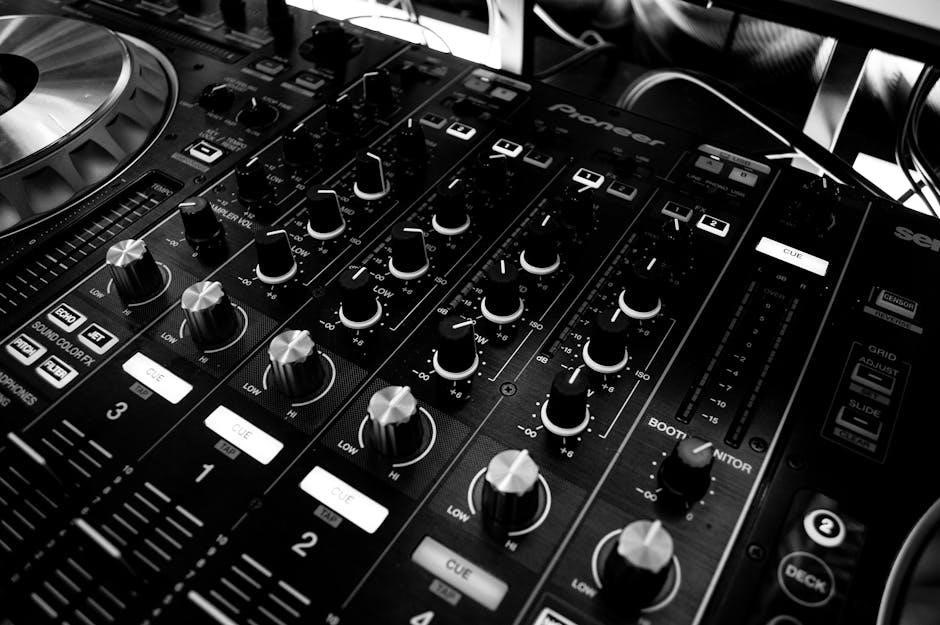
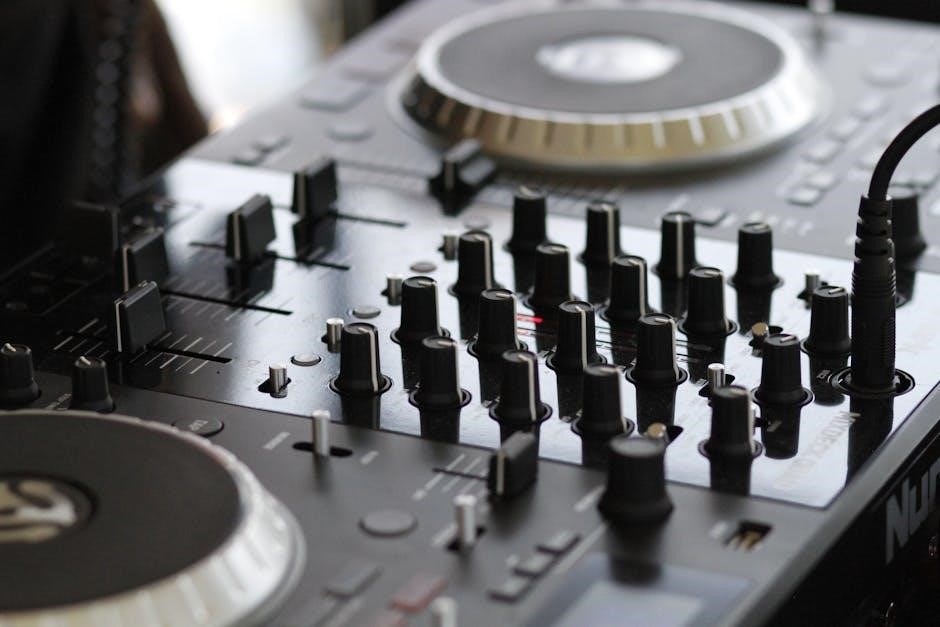
The KidiStar DJ Mixer’s control panel is intuitively designed for young DJs. It features a Master Volume control to adjust the overall sound output, and Tempo Control & Beat Matching to modify song speed. Several Sound Effects Buttons add exciting layers to your mixes – echo, flanger, and more!

The panel also includes buttons for selecting built-in tracks, initiating recording, and controlling playback. Familiarize yourself with each control to unlock the full creative potential of the KidiStar DJ Mixer and start crafting amazing tunes.

Master Volume Control
The Master Volume Control is a crucial element on the KidiStar DJ Mixer’s panel. This large, easily accessible knob regulates the overall sound level outputted through the built-in speaker or connected headphones. Rotating the knob clockwise increases the volume, while turning it counter-clockwise decreases it.
Always start with the volume at a low setting and gradually increase it to a comfortable listening level to protect hearing. Proper use of the Master Volume Control ensures a safe and enjoyable DJ experience for young music creators.
Tempo Control & Beat Matching
The KidiStar DJ Mixer features Tempo Control, allowing adjustment of a song’s speed. This function is vital for creating seamless transitions and beat matching between different tracks. Use the Tempo Control buttons (+/-) to speed up or slow down the currently playing song.
While simplified for younger users, understanding tempo changes is a foundational DJ skill. Experimenting with Tempo Control helps develop a sense of rhythm and timing, enhancing the overall mixing experience and creative potential with the included songs.
Sound Effects Buttons
The KidiStar DJ Mixer boasts several dedicated Sound Effects buttons, adding excitement and personality to your mixes. These buttons trigger pre-loaded sounds like laser blasts, animal noises, and musical flourishes, enhancing the performance.
Experiment with timing and layering these effects during playback to create unique and dynamic soundscapes. The sound effects are designed to be intuitive and fun for young DJs, encouraging creativity and experimentation. Pressing these buttons during a mix adds an extra layer of entertainment!
Using the Built-in Songs
The KidiStar DJ Mixer comes pre-loaded with 15 built-in songs, providing instant musical content for aspiring DJs. These tracks offer a diverse range of styles, allowing children to explore different genres and experiment with mixing techniques right out of the box.
Selecting a track is simple using the navigation buttons on the control panel. These songs serve as a fantastic starting point for learning the basics of beatmatching and creating custom mixes. Get ready to jam, scratch, and mix it up with the included musical selections!
Selecting a Built-in Track
To choose a built-in song, utilize the directional buttons located on the DJ mixer’s control panel. Press the ‘next’ or ‘previous’ buttons to cycle through the 15 pre-loaded tracks. The currently selected song number will be displayed on the unit’s screen, providing clear identification.
Once you’ve found your desired track, simply press the ‘play’ button to begin playback. Experiment with different songs to discover your favorites and start building your unique DJ sets. Enjoy exploring the diverse musical styles included with your KidiStar DJ Mixer!
Customizing Included Songs
The KidiStar DJ Mixer allows for creative customization of the 15 included songs. Utilize the sound effects buttons and tempo control to alter the tracks and add your personal flair. Experiment with different combinations to create unique remixes and personalized musical experiences.
You can adjust the tempo to speed up or slow down the music, and incorporate sound effects like scratching and echo to enhance the beat. Let your imagination run wild and transform the pre-loaded songs into entirely new creations!
Recording Your Own Mixes
The KidiStar DJ Mixer empowers young DJs to record their very own custom mixes! This feature allows for capturing creative sessions and sharing musical masterpieces. Initiating a recording is simple – just press the designated record button to begin capturing your mix as it plays.
To stop recording, press the same button again. The recorded mix is then saved for playback, allowing you to listen back and refine your skills. Experiment with different sounds and effects to create truly unique and personalized tracks!
Initiating and Stopping Recording
To begin recording your awesome DJ mix, locate the dedicated record button on the control panel. A single press activates the recording function, and a visual indicator (likely a flashing light) confirms that recording is in progress. Ensure your desired music is playing before pressing record to capture the full mix.
Stopping the recording is just as easy! Press the same record button once more. The flashing indicator will cease, signifying that the recording has been saved. You can then access and playback your newly created mix, ready for sharing or further editing.
Playback of Recorded Mixes
Accessing your recorded masterpieces is simple! Navigate to the playback mode on the KidiStar DJ Mixer. This is typically achieved through a dedicated button or a menu selection on the control panel. Once in playback mode, you’ll be able to cycle through your saved mixes.
Use the control buttons – play, pause, fast forward, and rewind – to manage your listening experience. The volume control adjusts the playback level. Enjoy listening back to your creative DJ mixes and share them with friends and family!
Scratching and Music Manipulation
Unleash your inner DJ with the KidiStar’s scratching capabilities! The scratch disc allows for realistic scratching sounds, adding a professional touch to your mixes. Gently move the disc back and forth to create those iconic scratching effects. Experiment with different speeds and pressures for varied sounds.
Combine scratching with sound effects for even more dynamic music manipulation. The mixer enables you to layer effects over the music while scratching, enhancing the overall performance. Practice and explore to master these techniques and create truly unique mixes!
Using the Scratch Disc
The KidiStar DJ Mixer features a dedicated scratch disc designed to emulate the feel of professional DJ turntables. To use it, simply move the disc back and forth with your finger. The speed and direction of your movement directly influence the scratching sound produced.
Experiment with different techniques! A quick, short movement creates a sharp scratch, while a slower, longer movement produces a smoother effect. Practice coordinating the scratch disc with the music playing to create seamless transitions and exciting sound effects.
Applying Sound Effects During Playback
Enhance your mixes with the KidiStar DJ Mixer’s built-in sound effects! These effects are easily activated by pressing the designated sound effect buttons on the control panel while a song is playing. Experiment with each button to discover the unique sounds they produce – from echoes and repeats to playful distortions.
Timing is key! Pressing the sound effect buttons at strategic moments can dramatically alter the feel of your music. Combine scratching with sound effects for truly dynamic and creative mixes. Have fun exploring the possibilities!
Volume Control and Headphone Jack
The KidiStar DJ Mixer features a master volume control allowing you to adjust the overall sound output. Ensure a comfortable listening level to protect your child’s hearing. The mixer also includes a headphone jack, enabling private listening sessions – perfect for practicing mixes without disturbing others!
Using headphones is recommended for focused mixing and to fully appreciate the sound effects. Always supervise children when using headphones and encourage them to keep the volume at a safe level. Adjust the master volume before plugging in headphones.
Troubleshooting Common Issues
If you experience no sound output, first check the volume control and ensure it’s not muted. Verify the headphones are securely plugged into the jack, or that an external music player is properly connected. For recording issues, confirm sufficient battery power is available.
If the mixer isn’t responding, try replacing the batteries with fresh ones. If problems persist, reset the unit by turning it off and on again. Refer to the full manual for detailed troubleshooting steps and contact VTech support if needed.
No Sound Output
If no sound is heard, begin by verifying the Master Volume Control is turned up and not set to the lowest setting. Ensure headphones are firmly connected to the headphone jack; a loose connection can cause silence. When using an external music player, double-check its volume is also audible.
Confirm the selected track isn’t paused or muted within the mixer’s interface. If the issue continues, try replacing the batteries with a fresh set, as low battery power can sometimes result in diminished sound output.
Recording Issues
If experiencing problems during recording, first ensure sufficient memory is available on the device. A full memory can prevent new recordings from initiating. Verify the recording button is fully depressed to start and stop the recording process correctly.
Check the Master Volume during recording; excessively low levels may result in a faint or inaudible recording. If recordings are distorted, lower the input volume before initiating. If the mixer freezes during recording, try resetting the device by removing and reinserting the batteries.
Safety Precautions and Warnings
Adult supervision is recommended during use, especially for younger children. Avoid exposing the KidiStar DJ Mixer to excessive moisture or extreme temperatures, as this can damage the electronic components. Do not disassemble the device; repairs should only be performed by qualified personnel.
Keep small parts, like battery compartments, away from young children to prevent choking hazards. Always use fresh batteries of the required type and ensure correct polarity during installation. Do not mix old and new batteries.
Cleaning and Maintenance
To clean the KidiStar DJ Mixer, wipe the exterior surfaces with a slightly damp, soft cloth. Avoid using harsh chemicals or abrasive cleaners, as they may damage the plastic. Ensure the device is powered off and batteries are removed before cleaning.
Regularly check the battery compartment for any signs of corrosion. Store the mixer in a cool, dry place when not in use, away from direct sunlight and extreme temperatures. Do not submerge the device in water or any other liquid.
Technical Specifications (Model 80-547300)
The VTech KidiStar DJ Mixer (Model 80-547300) operates on 3 x 1.5V AA batteries (not included). It features a built-in speaker and a headphone jack for private listening. The device includes 15 pre-loaded songs and allows for external music playback via an auxiliary input.
It incorporates license-exempt transmitters/receivers compliant with Innovation, Science and Economic Development Canada’s RSS standards. Dimensions and weight may vary slightly. Plastic material is used for the casing, ensuring durability for young DJs.
Regulatory Information (Innovation, Science and Economic Development Canada)
This device contains license-exempt transmitter(s)/receiver(s) that comply with Innovation, Science and Economic Development Canada’s license-exempt RSS(s). Operation is subject to two conditions: (1) this device may not cause interference; and (2) this device must accept any interference, including interference that may cause undesired operation of the device.
The manufacturer is not responsible for any radio or TV interference caused by unauthorized modifications to this equipment. Users should note that changes or modifications not expressly approved by the party responsible for compliance could void the user’s authority to operate the equipment.
Warranty Information
VTech Electronics North America, LLC provides a warranty against defects in materials and workmanship for a specified period from the date of purchase. This warranty covers normal use and does not include damage from misuse, accident, or unauthorized repair. To obtain warranty service, consumers should contact VTech support with proof of purchase.

The warranty does not cover consumable parts, such as batteries, or normal wear and tear. VTech’s liability under this warranty is limited to the repair or replacement of the defective product, at VTech’s discretion. See the full warranty details included with your product or online at VTech’s website.
Contacting VTech Support
For assistance with your KidiStar DJ Mixer, VTech offers multiple support channels. Customers can visit the VTech website for a comprehensive FAQ section, troubleshooting guides, and downloadable manuals. Alternatively, you can reach VTech customer support directly via phone during business hours.
Email support is also available for less urgent inquiries, allowing detailed descriptions and potential file attachments. When contacting support, please have your model number (80-547300) and date of purchase readily available to expedite the assistance process. Visit the official VTech website for current contact information.